Understanding Nanome 2.0’s New Permissioning System: A Guide to Secure and Collaborative Workspaces

In the realm of structure based drug discovery,, collaboration and data security are paramount. With the release of Nanome 2.0, we’ve introduced an entirely new Permissioning System designed to give you granular control over your workspaces and how you share them with others. In this blog post, we’ll explore the new permissioning system in detail, explaining the roles of Viewer, Editor, and Owner, and how you can effectively manage permissions to create a secure and collaborative environment.
The Importance of Permissions in Collaborative Workflows
When working with sensitive data or proprietary research, it’s crucial to ensure that only authorized individuals have access to your workspaces. At the same time, collaboration is essential for advancing scientific discoveries. Nanome’s new permissioning system covers both security and collaboration, giving you control over who can view, edit, or manage your workspaces.
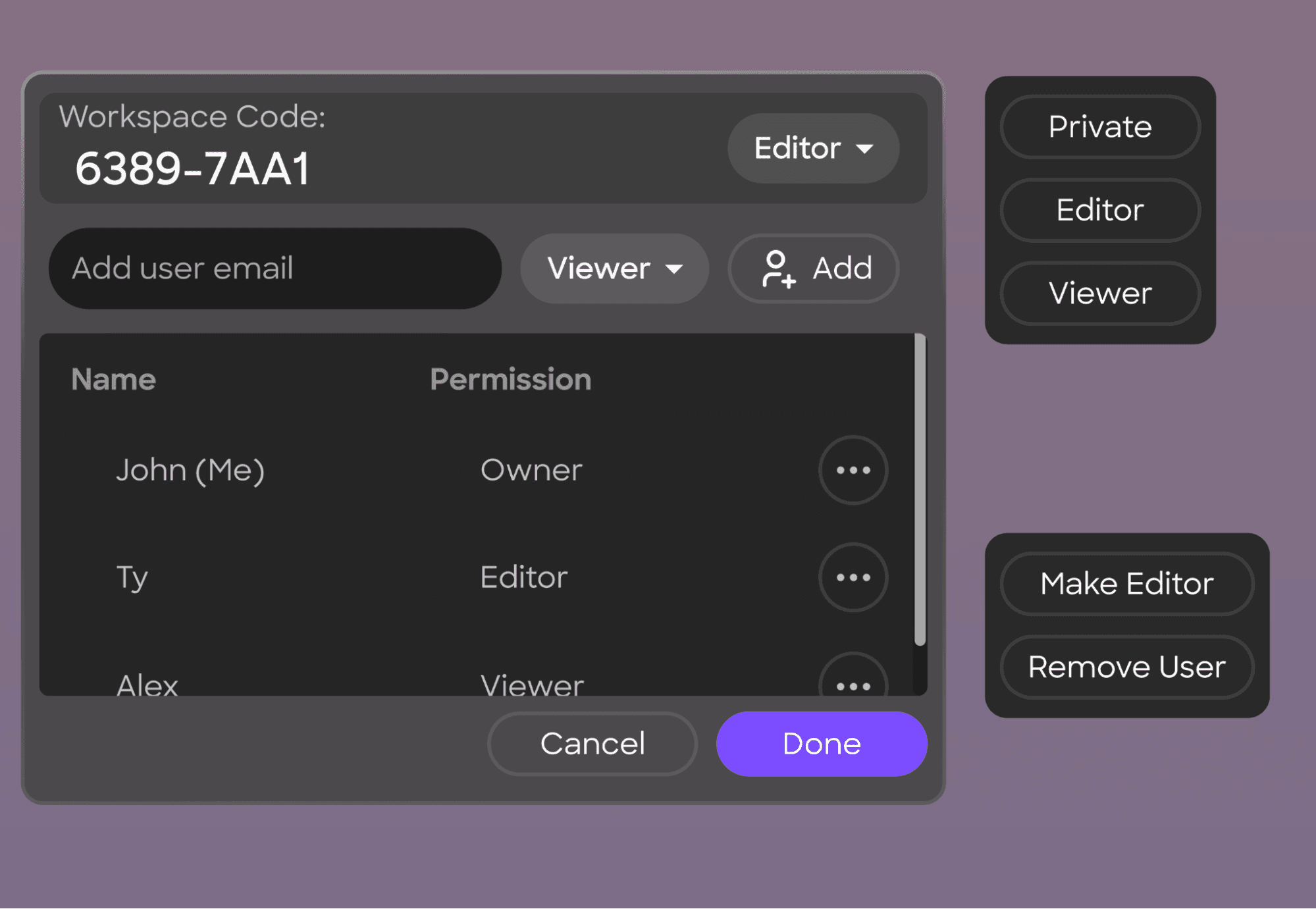
Overview of the Permission Levels
1. Viewer
- Capabilities:
- Can see structures within the workspace.
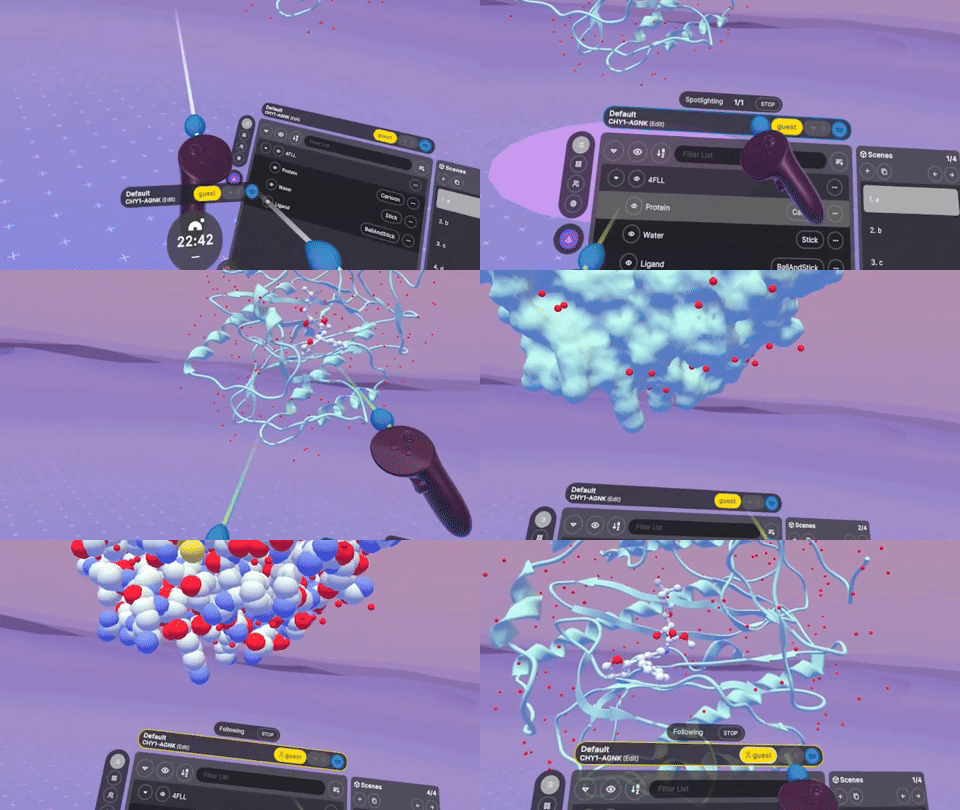
- Can spotlight their view to share their perspective with others.
- Can follow others to see what they are viewing.
- Can navigate between scenes.
- Restrictions:
- Cannot edit representations or structures.
- Cannot arrange structures within the workspace.
- Cannot invite others to the workspace.
2. Editor
- Capabilities:
- All Viewer permissions, plus-
- Can edit representations, changing how molecules are visualized.
- Can arrange structures, repositioning molecules within the workspace.
- Can invite others to the workspace as Viewers or Editors.
- Restrictions:
- Cannot delete the workspace.
- Cannot change ownership of the workspace.
3. Owner
- Capabilities:
- All Editor permissions, plus:
- Can delete the workspace.
- Has ultimate control over the workspace and its contents.
- Restrictions:
- There can be only one Owner per workspace.
- Responsible for managing overall permissions and workspace settings.
Managing Permissions in Nanome 2.0
Setting Workspace Permissions
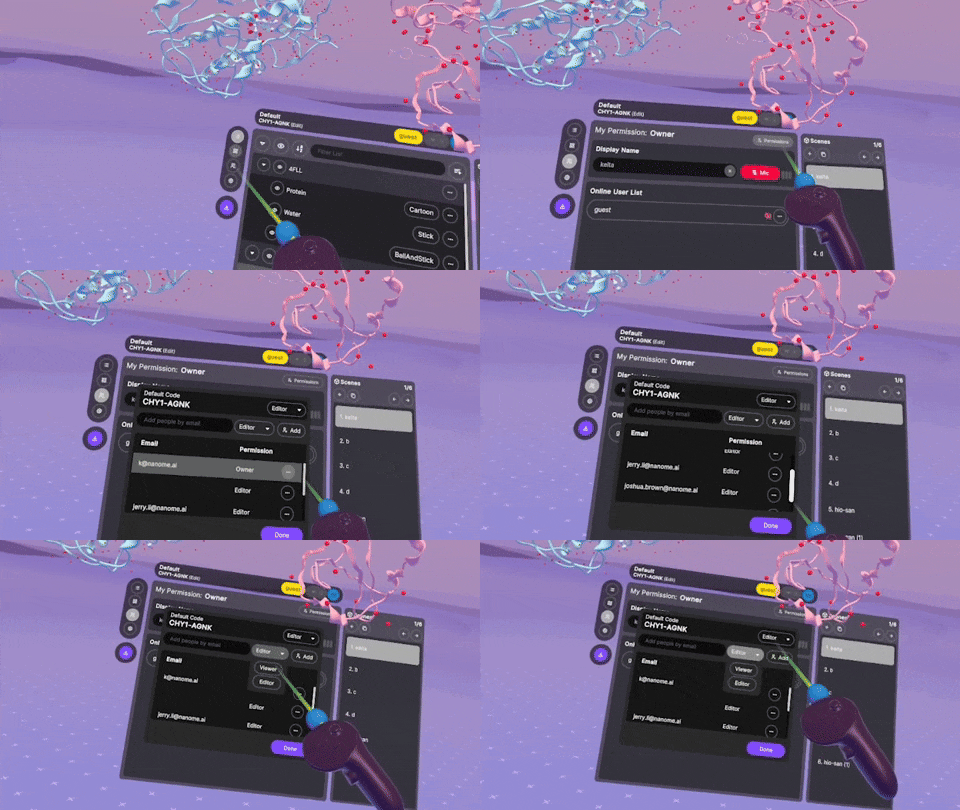
When you create a new workspace or load an existing one, you can set the permissions for that workspace as a whole:
- Private (None): The workspace is only accessible to you. Others cannot join unless invited.
- Viewer: Allows others to view the workspace with Viewer permissions.
- Editor: Allows others to join with Editor permissions.
Inviting Collaborators
As an Owner, you can also set the permissions for collaborators you invite to your workspace:
- Open the Collaboration Menu: Navigate to the Collaboration option in the Application Menu.
- Access Permissions: Click on Permissions to manage who has access to your workspace.
- Invite by Code:
- Set the Workspace Code: Change the code from Private to Viewer or Editor based on your needs.
- Share the Code: Provide the code to your collaborators so they can join the workspace.
- Invite by Email:
3. Enter Email Address: Type the exact email associated with your collaborator’s Nanome account.
4. Select Permission Level: Choose whether they should join as a Viewer or Editor.
5. Send Invitation: The user will receive an invitation to join your workspace.
Managing Collaborator Permissions
- View Current Collaborators: In the Permissions section, you’ll see a list of users who have access to the workspace.
- Adjust Individual Permissions:
- Change Roles: You can upgrade a Viewer to an Editor or downgrade an Editor to a Viewer as needed.
- Revoke Access: Set a user’s permission to None to remove their access to the workspace.
Understanding Load Options
When loading a workspace, you have two options:
- Load for All:
- Brings Everyone with You: All participants in your current session will transition to the new workspace.
- Set Permissions: You may be prompted to assign permissions to users who don’t already have them.
- Participant Notifications: Users will see a progress notification with the option to opt-out or join immediately.
- Load:
- Solo Transition: Only you will move to the new workspace.
- Others Remain: Participants will stay in the original workspace unless they choose to join you later.
Best Practices for Secure Collaboration
- Assign Appropriate Permissions: Only grant Editor permissions to users who need to modify structures or representations.
- Regularly Review Access: Periodically check the list of collaborators and adjust permissions as projects evolve.
- Use Private Workspaces for Sensitive Data: Keep workspaces set to Private when working on proprietary or confidential research.
- Communicate with Your Team: Ensure all collaborators understand their permissions and responsibilities within the workspace.
- Delete Workspaces that are No Longer in Use: Remember, only Owners can delete workspaces. .
Scenarios and Applications
Collaborative Research Projects
For team projects where multiple researchers need to analyze and manipulate molecular structures:
- Assign Editors: Key team members can be given Editor permissions to contribute actively.
- Assign Viewers: Stakeholders or advisors can join as Viewers to observe progress without altering data.
Educational Settings
In a classroom or workshop environment:
- Instructor as Owner: The instructor maintains control over the workspace.
- Students as Viewers: Participants can explore the structures and follow along with the lesson.
- Interactive Sessions: Temporarily elevate students to Editors for hands-on activities, then revert to Viewer after.
Presentations and Demonstrations
When showcasing findings to an audience:
- Use Load for All: Ensure everyone is viewing the same workspace.
- Spotlight Feature: Guide viewers through your presentation by spotlighting key structures or scenes.
- Maintain Control: Keep participants as Viewers to prevent unintended changes.
Conclusion
Nanome 2.0’s new permissioning system offers a robust and flexible framework for managing collaborative workspaces. By understanding and utilizing Viewer, Editor, and Owner roles effectively, you can create a secure environment that fosters collaboration while protecting your valuable research.
Whether you’re leading a research team, teaching a class, or presenting to stakeholders, the ability to control access and permissions ensures that your work in Nanome is both productive and secure.
Experience the enhanced collaboration features today! Get started with the Nanome AI Early Access Package: https://nanome.ai/nanome-ai/